
Requirements
- WordPress 6.0 or later
- WooCommerce 8.0 or later
- A StellarTools account with an API key and webhook secret
Download the plugin
Download stellartools-woocommerce.zipInstallation
Step 1 Navigate to Add Plugin
In your WordPress admin sidebar, go to Plugins then click the Add Plugin button at the top of the page.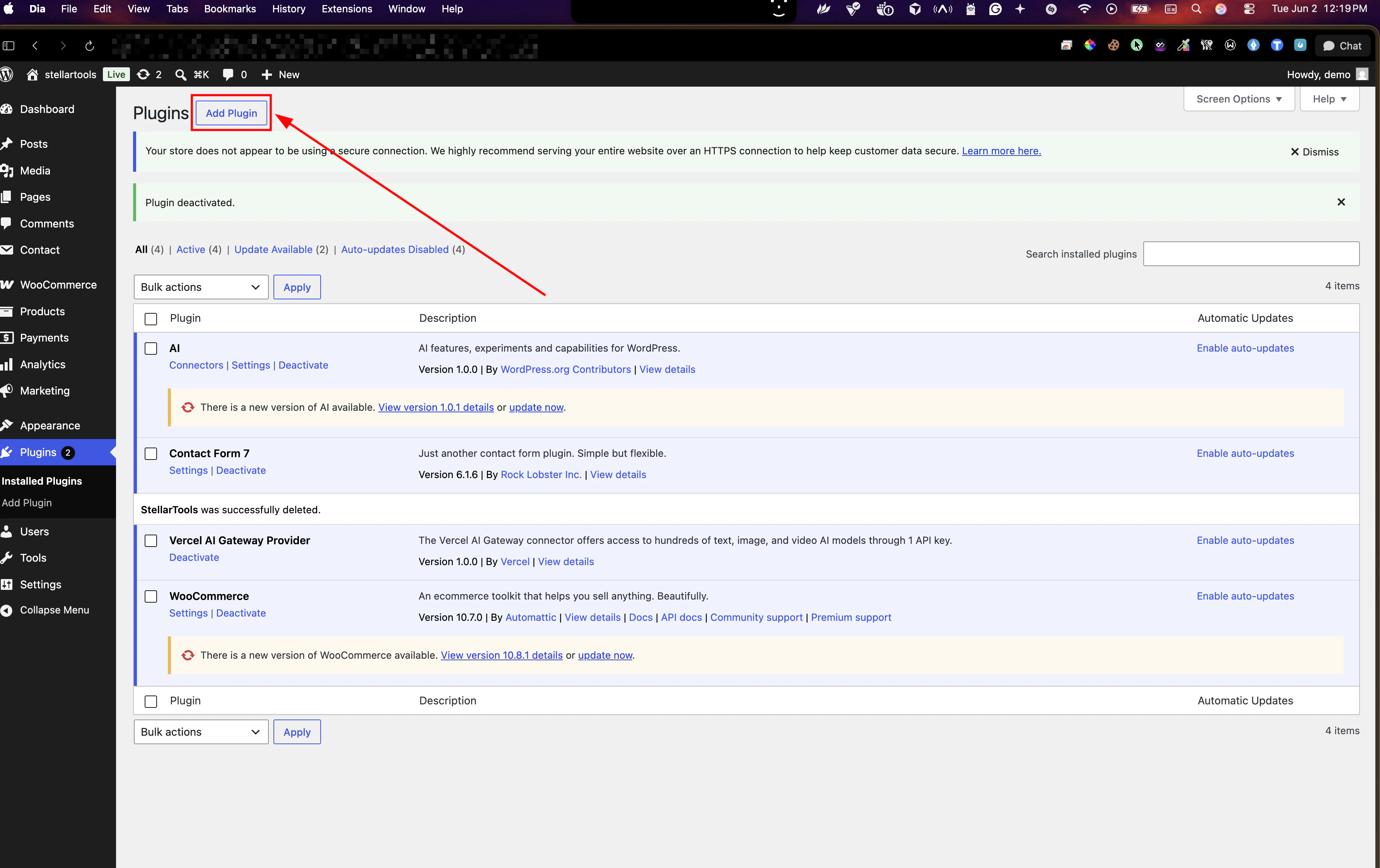
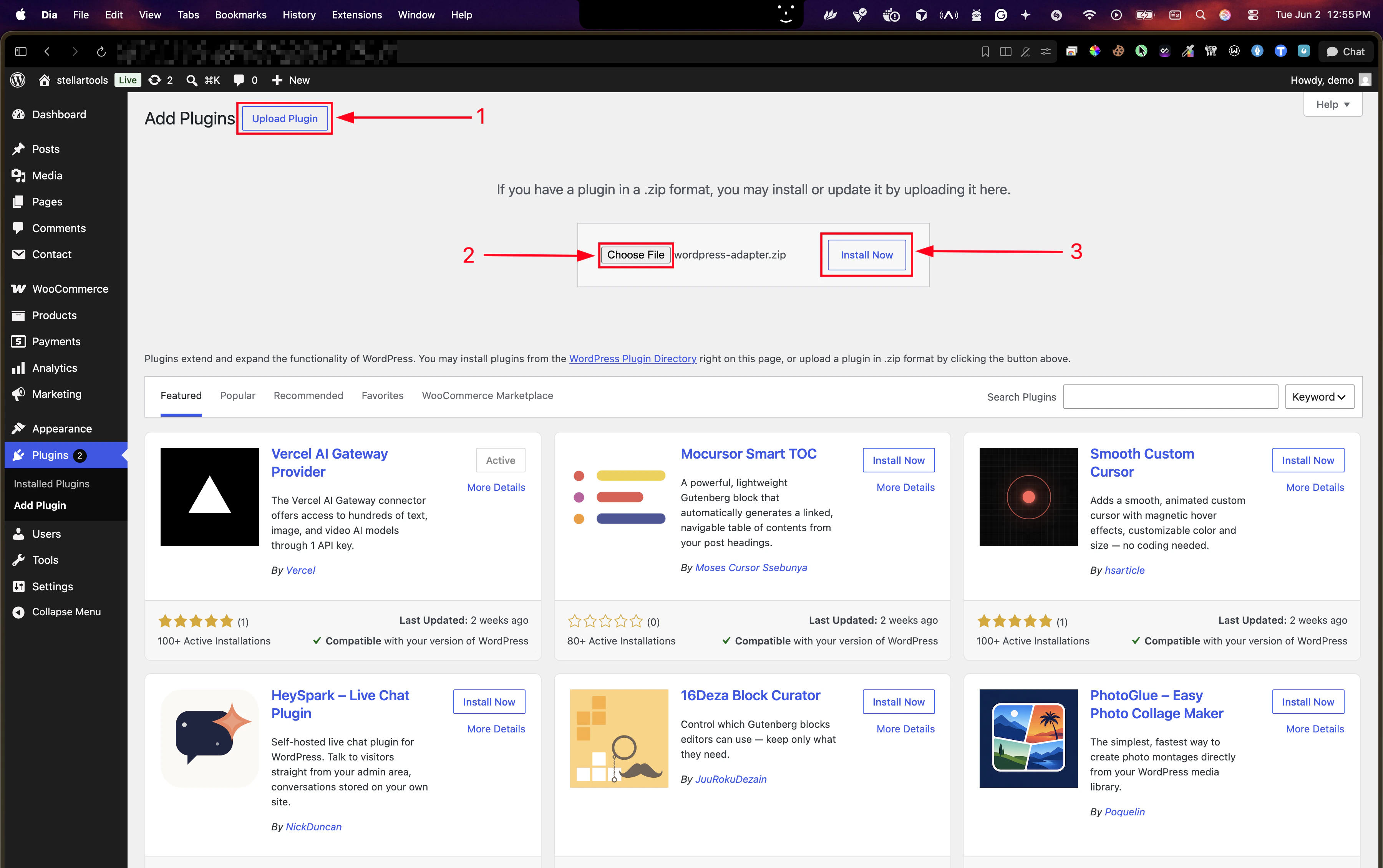
Step 2 Upload and install
On the Add Plugins screen, click Upload Plugin, select yourstellartools-woocommerce.zip file, then click Install Now.
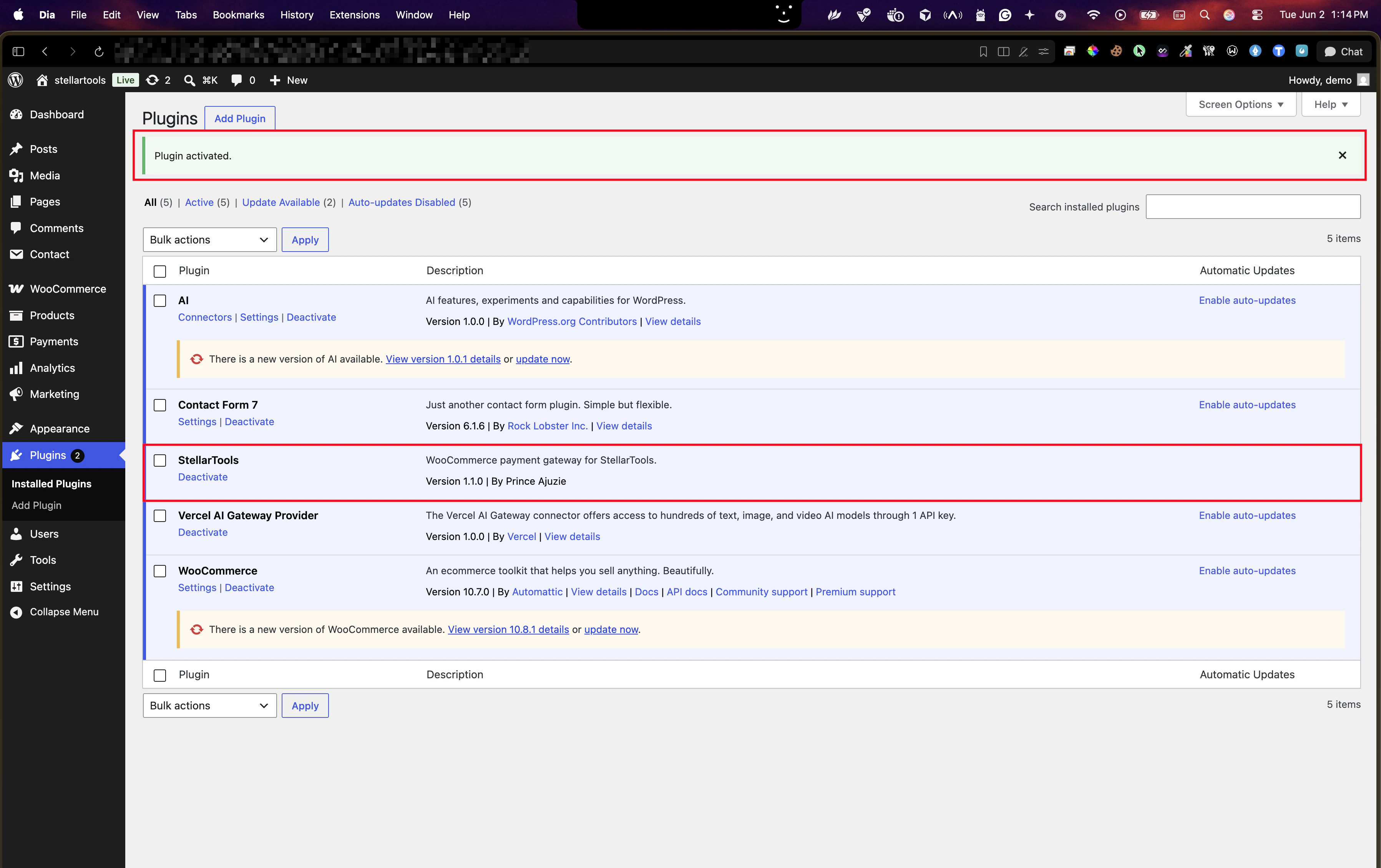
Step 3 Activate the plugin
After the upload completes, click Activate Plugin.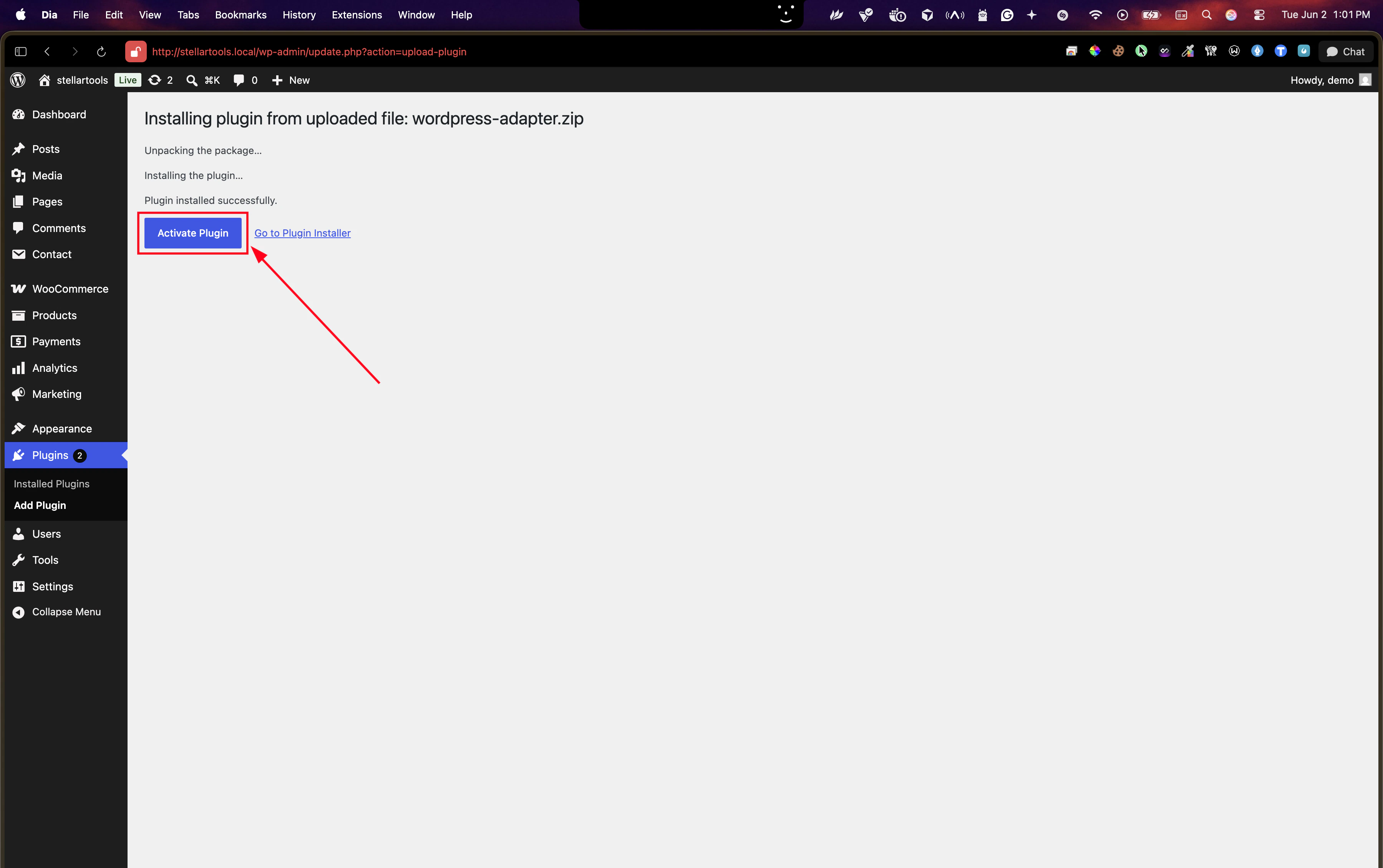
Configuration
Step 4 Open WooCommerce payment settings
In the sidebar go to WooCommerce → Settings, click the Payments tab, and find StellarTools in the list. Click Manage to open the gateway settings.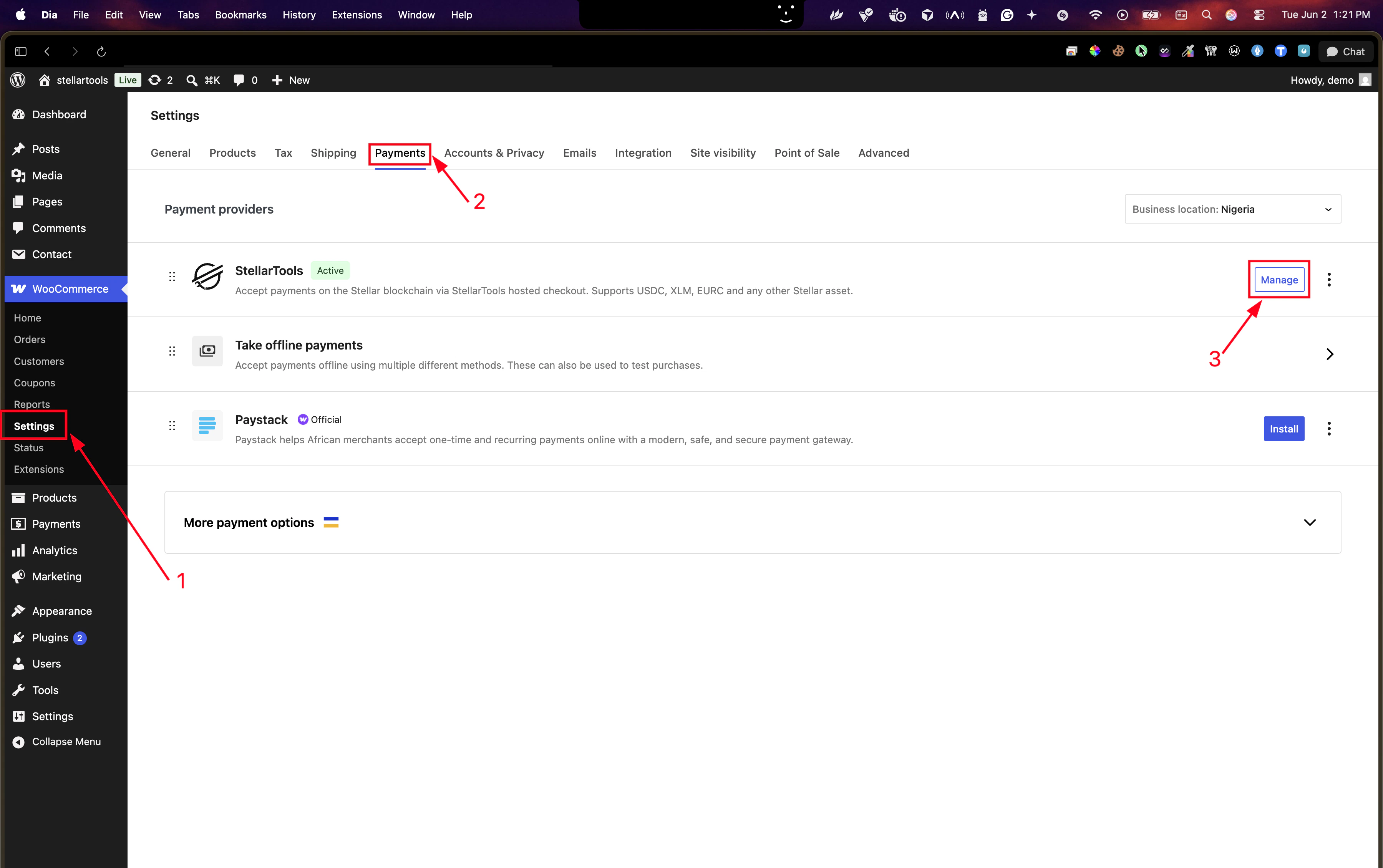
Step 5 Enter your credentials
Fill in the fields highlighted below and save. Checkout amounts use your WooCommerce store currency (WooCommerce → Settings → General). Customers choose USDC, EURC, or XLM on the StellarTools hosted payment page.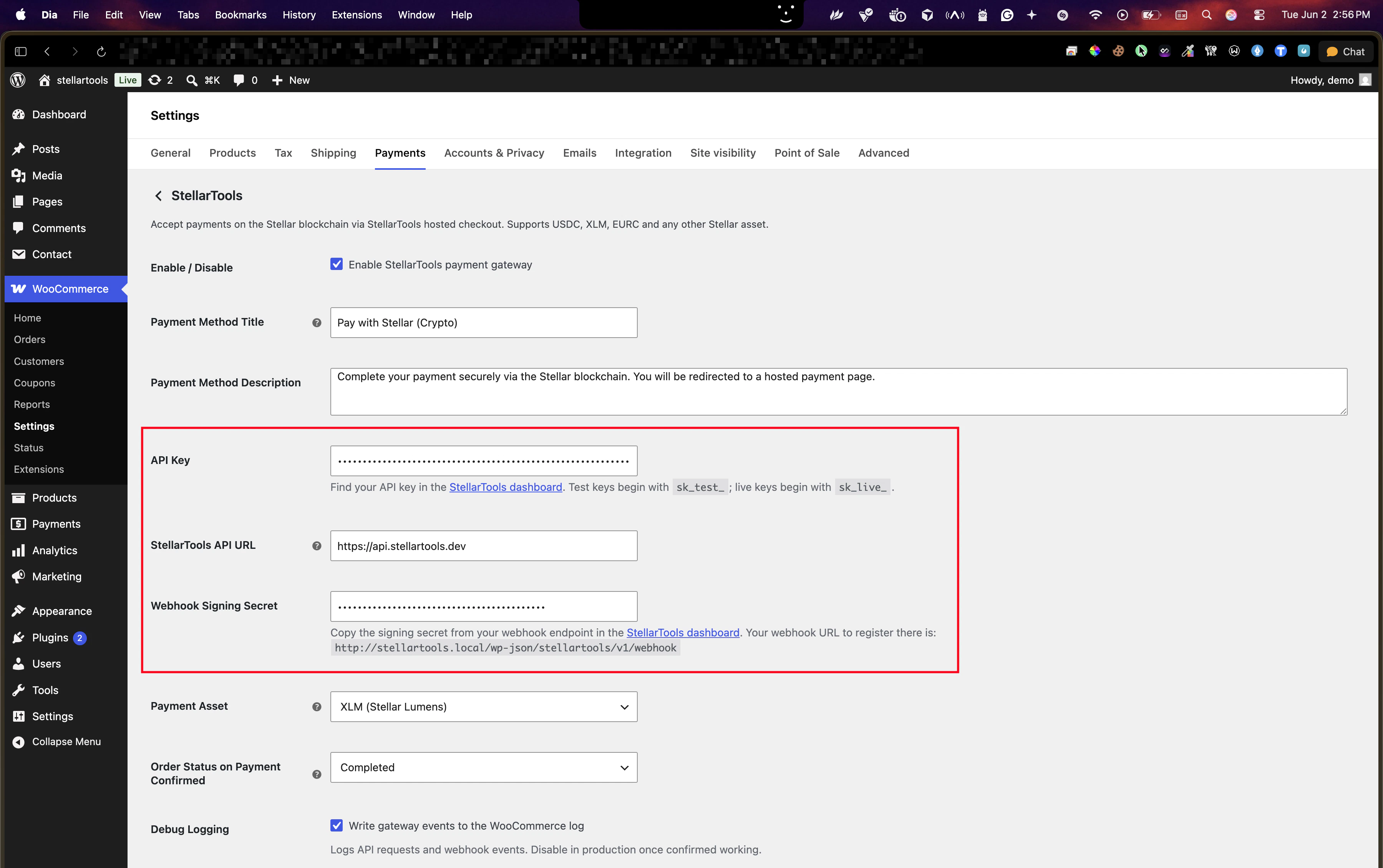
string
required
Your StellarTools secret key. Test keys begin with
sk_test_; live keys begin with sk_live_. Find yours in the
StellarTools dashboard.string
Leave as
https://api.stellartools.dev unless you are self-hosting. No trailing slash.string
required
Copy the signing secret from your webhook endpoint in the StellarTools
dashboard. Your webhook URL is shown inline directly in the settings
page copy it from there.
string
WooCommerce status to set when payment is confirmed. Use Processing for physical goods that need fulfilment; use
Completed for digital or virtual products.
boolean
Writes API requests and webhook events to WooCommerce → Status → Logs. Enable during setup, disable in production.
Step 6 Register the webhook in StellarTools
Copy the webhook URL displayed in the settings panel and add it as a new endpoint in the StellarTools dashboard. Enable at minimum thepayment.confirmed and payment.failed events.
The URL uses WordPress plain-permalink REST routing:
How it works
Once configured, Pay with Stellar (Crypto) appears as a payment option on the WooCommerce checkout page.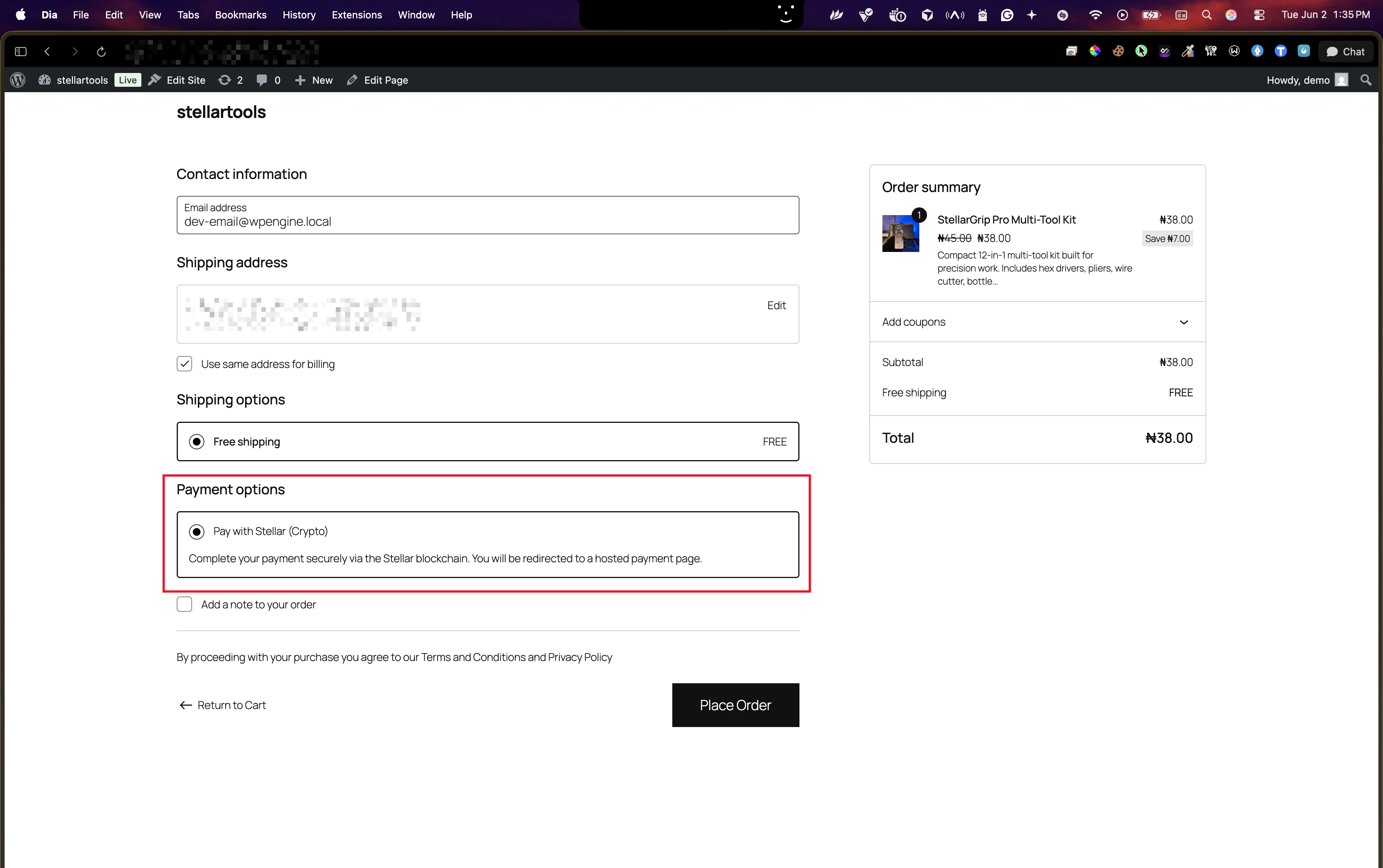
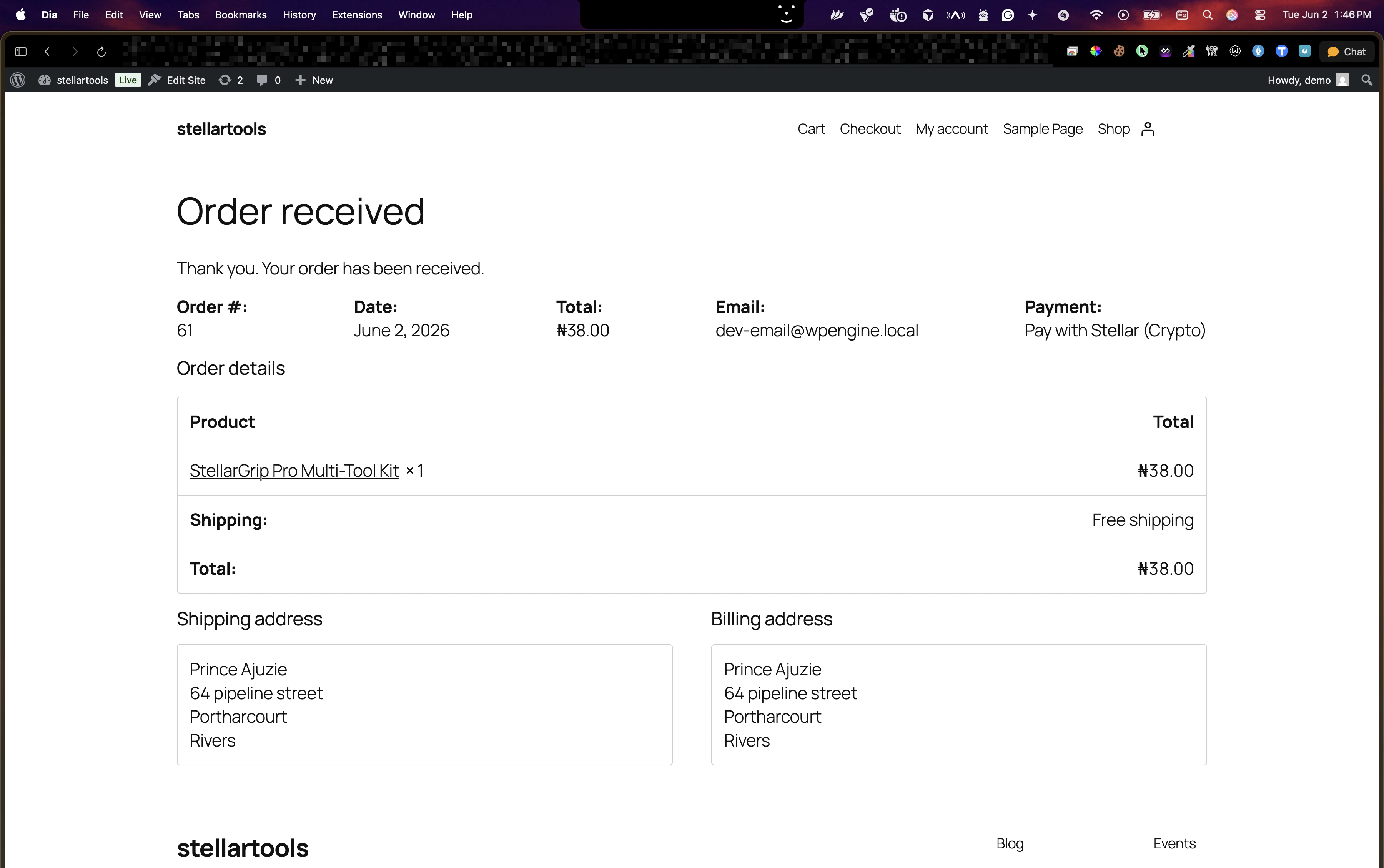
payment.confirmed webhook to your site. The plugin verifies the signature, resolves the WooCommerce order, and updates the status automatically.