> ## Documentation Index
> Fetch the complete documentation index at: https://docs.stellartools.dev/llms.txt
> Use this file to discover all available pages before exploring further.
# WooCommerce Adapter
> Accept Stellar blockchain payments in your WooCommerce store
The StellarTools WooCommerce plugin adds Stellar-based payments to any WooCommerce store. Customers pay with USDC, EURC, or XLM through a hosted checkout page. Order status updates automatically when StellarTools confirms payment via webhook.
## Requirements
* WordPress 6.0 or later
* WooCommerce 8.0 or later
* A [StellarTools account](https://dashboard.stellartools.dev/signup) with an API key and webhook secret
## Download the plugin
[Download stellartools-woocommerce.zip](https://dashboard.stellartools.dev/~api/integrations/woocommerce/download)
## Installation
### Step 1 Navigate to Add Plugin
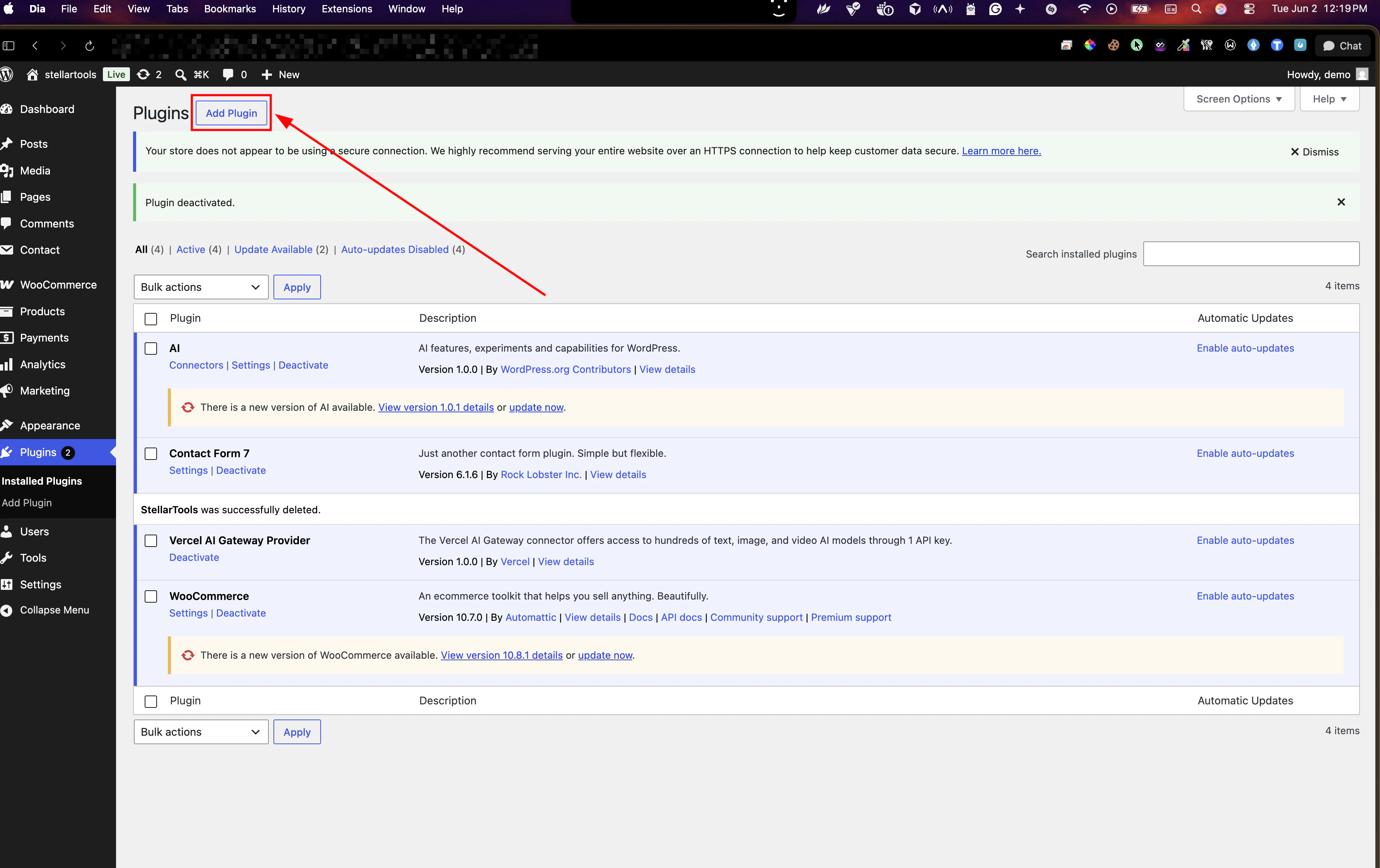
In your WordPress admin sidebar, go to **Plugins** then click the **Add Plugin** button at the top of the page.
 ### Step 2 Upload and install
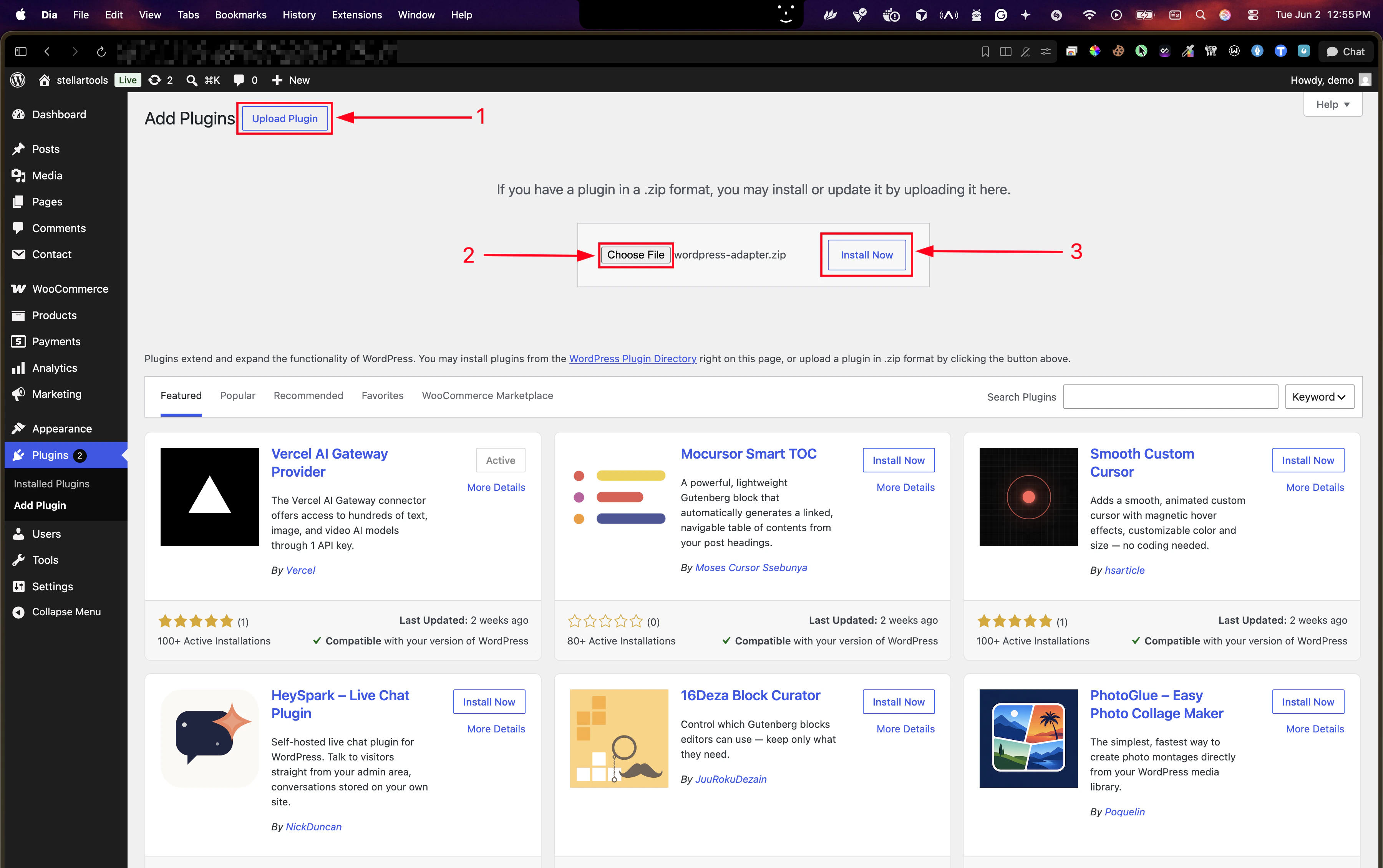
On the Add Plugins screen, click **Upload Plugin**, select your `stellartools-woocommerce.zip` file, then click **Install Now**.
### Step 2 Upload and install
On the Add Plugins screen, click **Upload Plugin**, select your `stellartools-woocommerce.zip` file, then click **Install Now**.
 ### Step 3 Activate the plugin
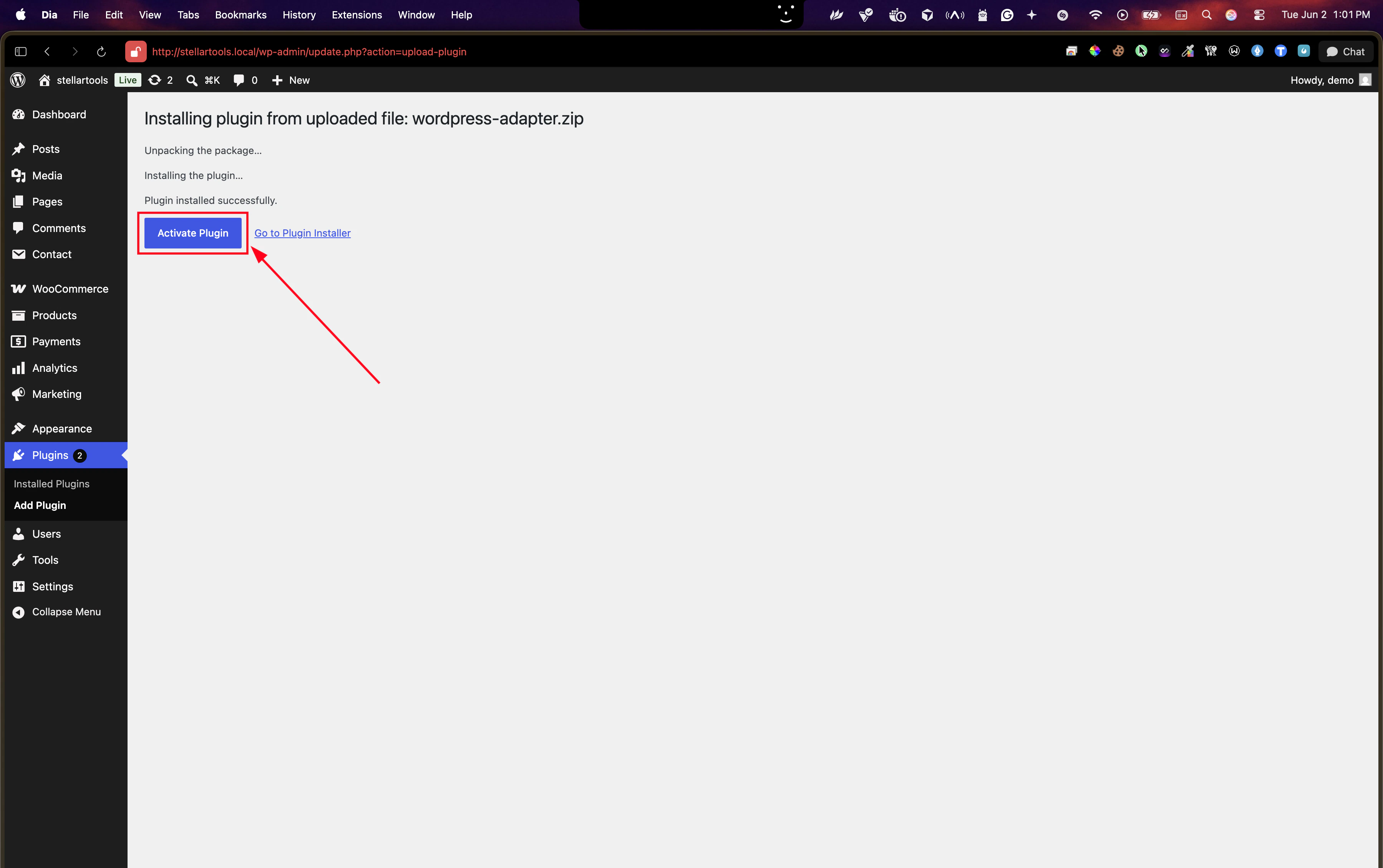
After the upload completes, click **Activate Plugin**.
### Step 3 Activate the plugin
After the upload completes, click **Activate Plugin**.
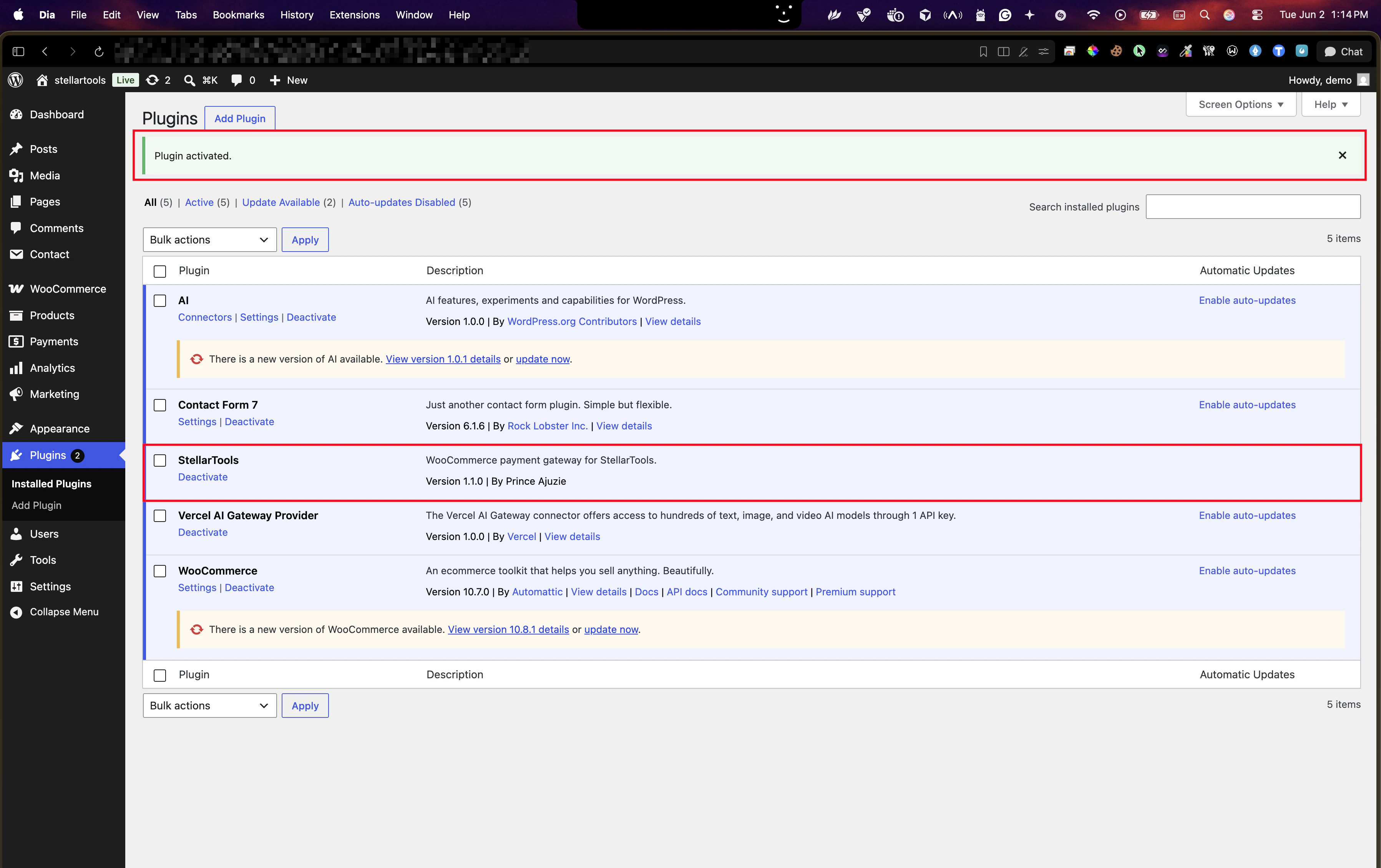
 StellarTools will now appear in your installed plugins list.
 ## Configuration
### Step 4 Open WooCommerce payment settings
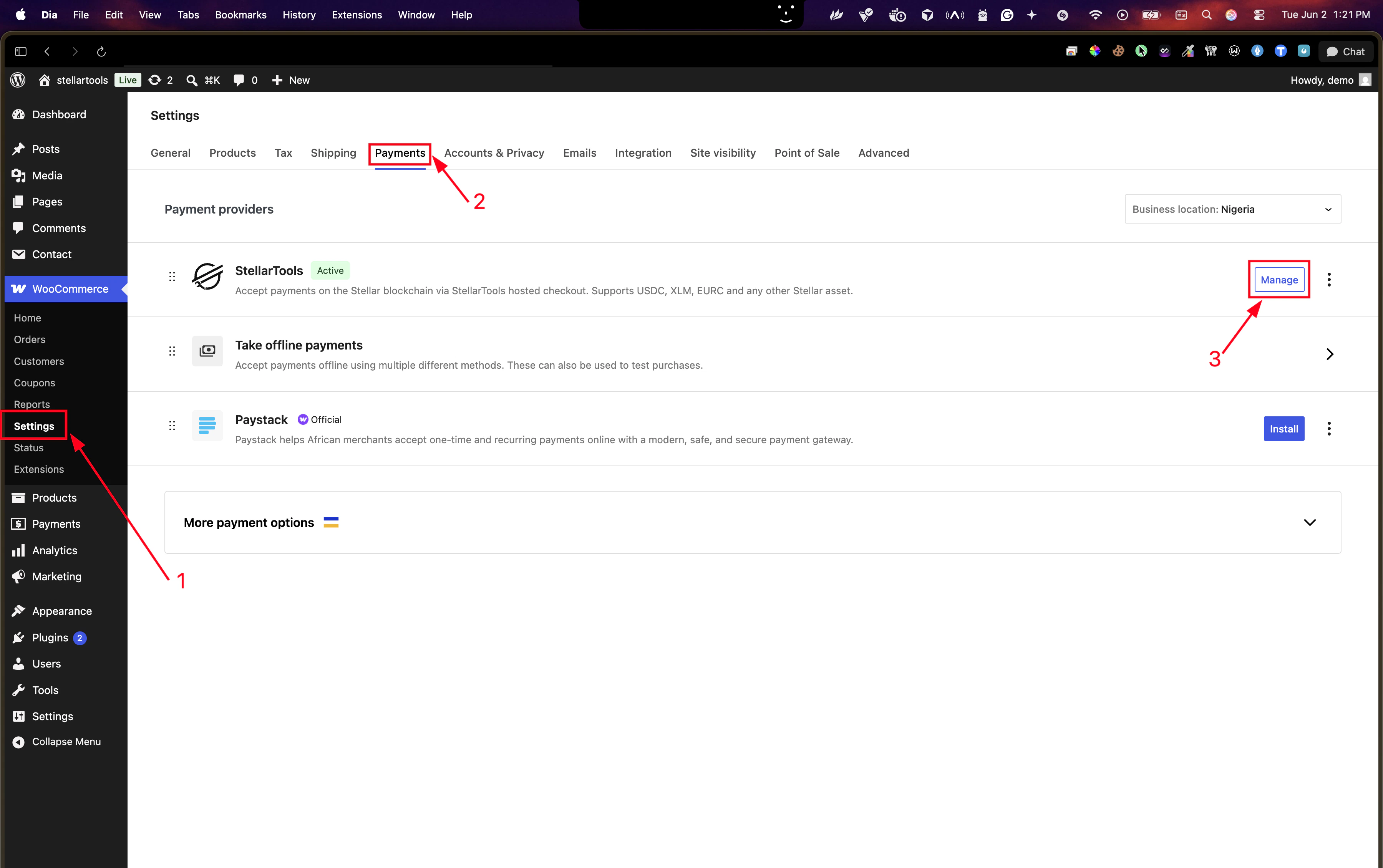
In the sidebar go to **WooCommerce → Settings**, click the **Payments** tab, and find StellarTools in the list. Click **Manage** to open the gateway settings.
## Configuration
### Step 4 Open WooCommerce payment settings
In the sidebar go to **WooCommerce → Settings**, click the **Payments** tab, and find StellarTools in the list. Click **Manage** to open the gateway settings.
 ### Step 5 Enter your credentials
Fill in the fields highlighted below and save. Checkout amounts use your WooCommerce store currency (WooCommerce → Settings → General). Customers choose USDC, EURC, or XLM on the StellarTools hosted payment page.
### Step 5 Enter your credentials
Fill in the fields highlighted below and save. Checkout amounts use your WooCommerce store currency (WooCommerce → Settings → General). Customers choose USDC, EURC, or XLM on the StellarTools hosted payment page.
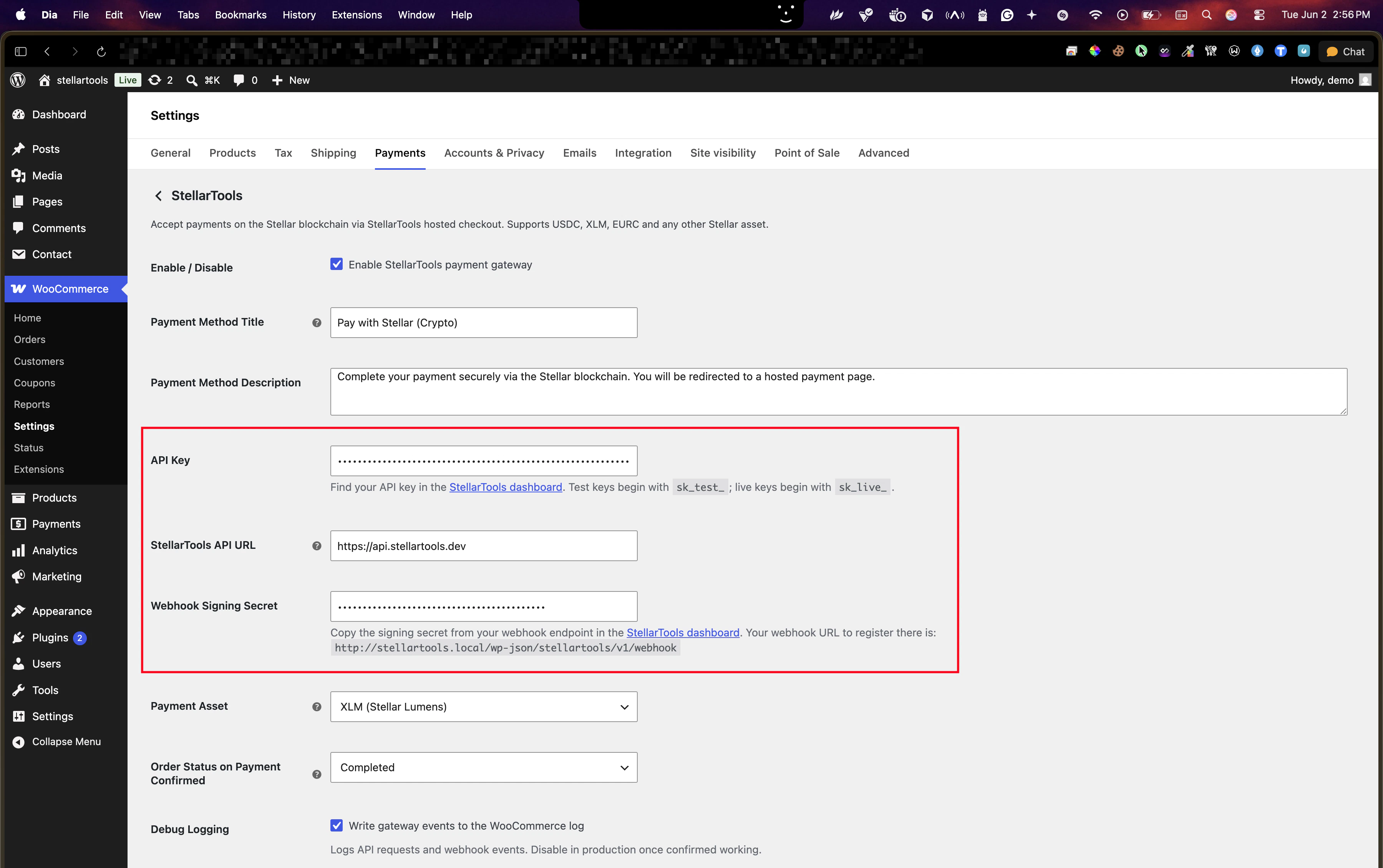 Your StellarTools secret key. Test keys begin with `sk_test_`; live keys begin with `sk_live_`. Find yours in the
[StellarTools dashboard](https://dashboard.stellartools.dev/api-keys).
Leave as `https://api.stellartools.dev` unless you are self-hosting. No trailing slash.
Copy the signing secret from your webhook endpoint in the [StellarTools
dashboard](https://dashboard.stellartools.dev/webhooks). Your webhook URL is shown inline directly in the settings
page copy it from there.
WooCommerce status to set when payment is confirmed. Use **Processing** for physical goods that need fulfilment; use
**Completed** for digital or virtual products.
Writes API requests and webhook events to WooCommerce → Status → Logs. Enable during setup, disable in production.
### Step 6 Register the webhook in StellarTools
Copy the webhook URL displayed in the settings panel and add it as a new endpoint in the [StellarTools dashboard](https://dashboard.stellartools.dev/webhooks). Enable at minimum the `payment.confirmed` and `payment.failed` events.
The URL uses WordPress plain-permalink REST routing:
```
https:///index.php?rest_route=/stellartools/v1/webhook
```
## How it works
Once configured, **Pay with Stellar (Crypto)** appears as a payment option on the WooCommerce checkout page.
Your StellarTools secret key. Test keys begin with `sk_test_`; live keys begin with `sk_live_`. Find yours in the
[StellarTools dashboard](https://dashboard.stellartools.dev/api-keys).
Leave as `https://api.stellartools.dev` unless you are self-hosting. No trailing slash.
Copy the signing secret from your webhook endpoint in the [StellarTools
dashboard](https://dashboard.stellartools.dev/webhooks). Your webhook URL is shown inline directly in the settings
page copy it from there.
WooCommerce status to set when payment is confirmed. Use **Processing** for physical goods that need fulfilment; use
**Completed** for digital or virtual products.
Writes API requests and webhook events to WooCommerce → Status → Logs. Enable during setup, disable in production.
### Step 6 Register the webhook in StellarTools
Copy the webhook URL displayed in the settings panel and add it as a new endpoint in the [StellarTools dashboard](https://dashboard.stellartools.dev/webhooks). Enable at minimum the `payment.confirmed` and `payment.failed` events.
The URL uses WordPress plain-permalink REST routing:
```
https:///index.php?rest_route=/stellartools/v1/webhook
```
## How it works
Once configured, **Pay with Stellar (Crypto)** appears as a payment option on the WooCommerce checkout page.
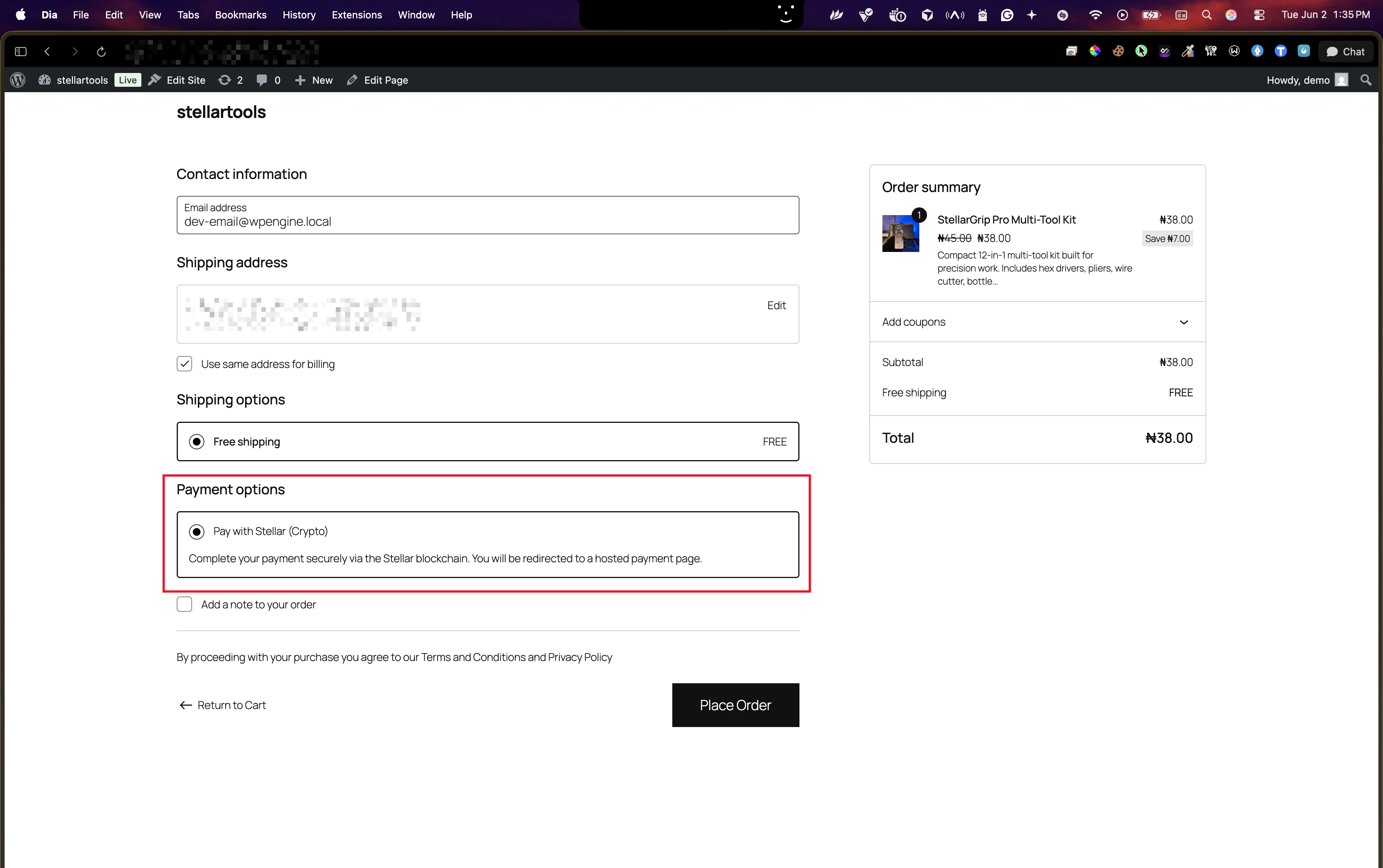 After clicking **Place Order** the customer is redirected to the StellarTools hosted payment page to complete the payment on the Stellar blockchain. On return they land on the WooCommerce order confirmation page.
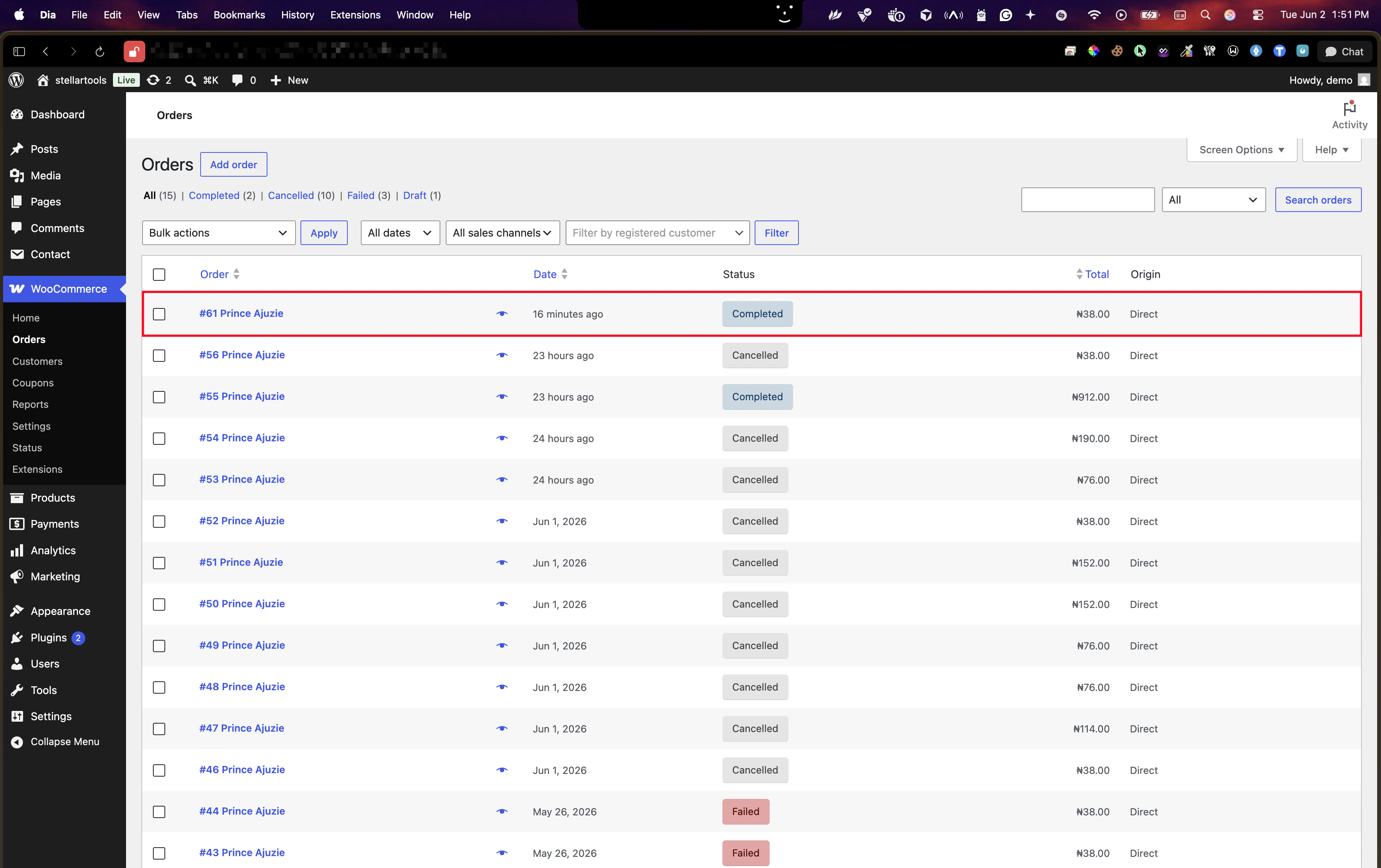
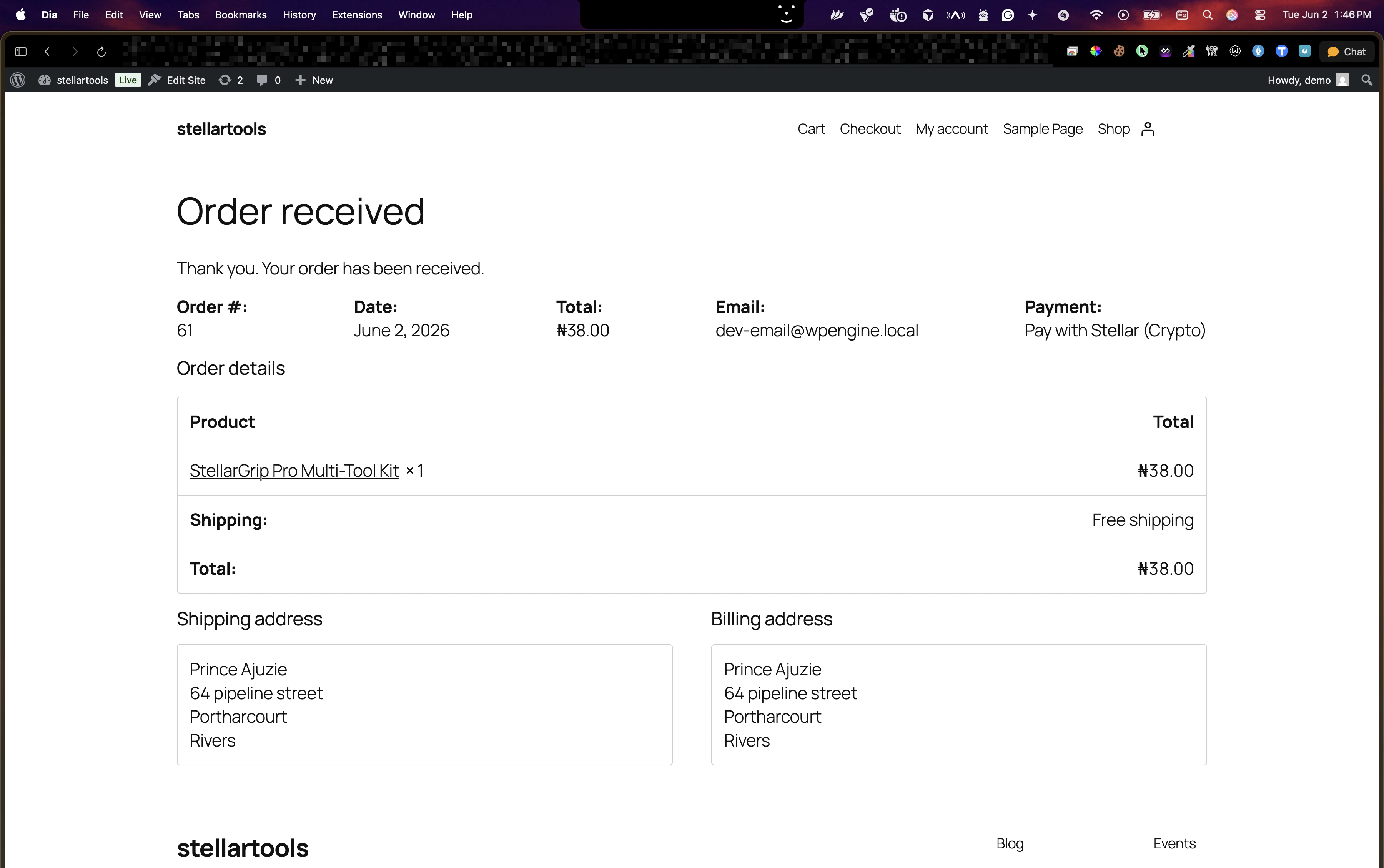 StellarTools fires a `payment.confirmed` webhook to your site. The plugin verifies the signature, resolves the WooCommerce order, and updates the status automatically.
 ## Webhook events
| Event | WooCommerce action |
| ------------------- | -------------------------------------------------------------------------------------------------------------- |
| `payment.confirmed` | Order moves to Processing or Completed (per your setting), payment ID and transaction hash saved to order meta |
| `payment.failed` | Order moves to Failed |
## Webhook events
| Event | WooCommerce action |
| ------------------- | -------------------------------------------------------------------------------------------------------------- |
| `payment.confirmed` | Order moves to Processing or Completed (per your setting), payment ID and transaction hash saved to order meta |
| `payment.failed` | Order moves to Failed |